
May 19, 2026 · simatic-axapaxsiemensplc-programmingindustrial-automationcontrol-systems
There is a moment, early in the SIMATIC AX learning curve, when you realise that the CLI is not a secondary tool you run occasionally. It is the product surface. There is no “build” button. There is no “download to PLC” button hidden in a right-click menu. There is apax build and apax load. Everything meaningful in an AX project — creating it, compiling it, testing it, loading it, managing the runtime — happens through apax commands in a terminal.
From a TIA Portal engineer’s point of view, this is a significant shift. TIA Portal is a GUI-first product. You can reach PLCSIM, the download dialog, the project library, the tag table, and the network view without touching a keyboard shortcut. Automation Openness — TIA’s scripting API — exists, but it is an advanced option that most engineers never use in daily work.
apax is the daily work. Not a power-user add-on.
This article maps the commands I have actually used in my demo projects — apax create, apax install, apax build, apax test, apax dm, and a few others worth knowing. Where I have validated something hands-on, I say what I found. Where I am working from the documentation and have not yet verified it in a running project, I say that too.
The Natural Lifecycle
Before going command by command, it helps to walk the lifecycle once as a narrative.
A project starts with apax create. This pulls a project template from the Siemens registry and scaffolds the folder structure — src/, test/, hwc/, and a pre-populated apax.yml that defines the project name, version, targets, dependencies, and custom build scripts. The template is a real starting point, not a blank folder.
Then apax install. This reads apax.yml, contacts the registry, and downloads the declared packages into .apax/ — the local package cache inside the project. This is structurally similar to npm install creating node_modules/. The packages go into .apax/ and do not belong in git.
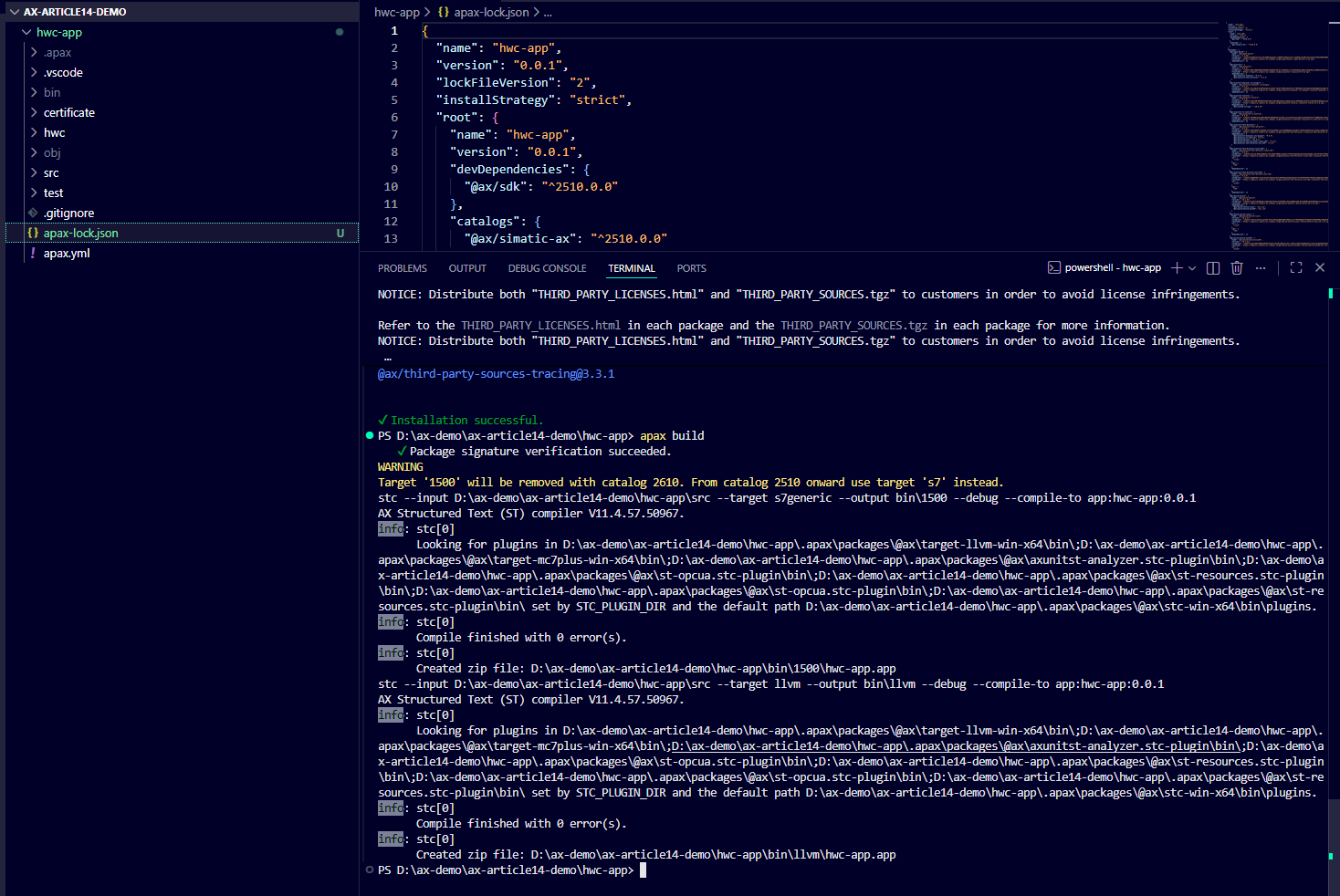
apax build compiles the Structured Text source code in src/ against the installed packages and produces binaries in bin/. For a full AX project targeting an S7-1500, it builds two targets: bin/1500/ for the real PLC and bin/llvm/ for the local LLVM toolchain used by unit tests.
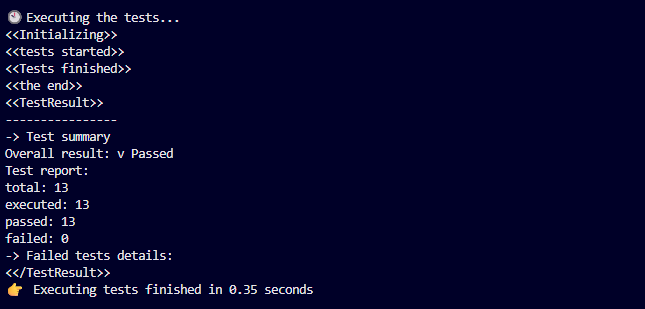
apax test compiles the test code in test/ against the LLVM target and runs the AxUnit test fixtures on the local machine. No PLC required for the default path. The TempController demo has 13 tests that run in under two seconds on my workstation.
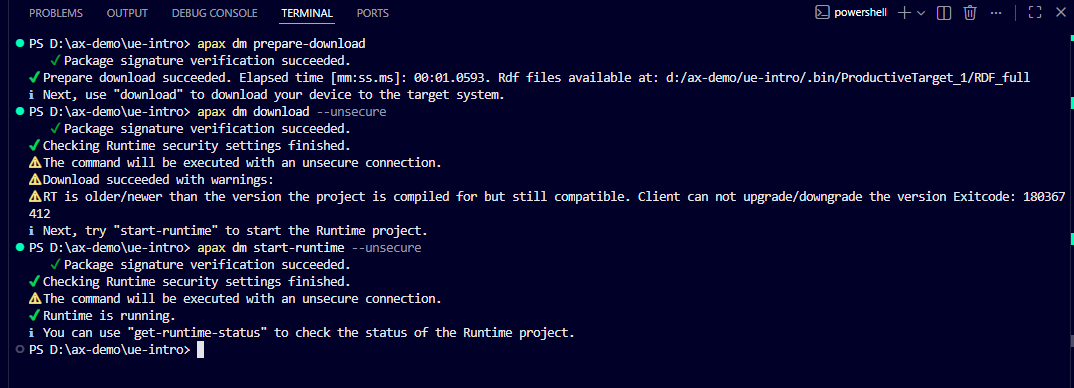
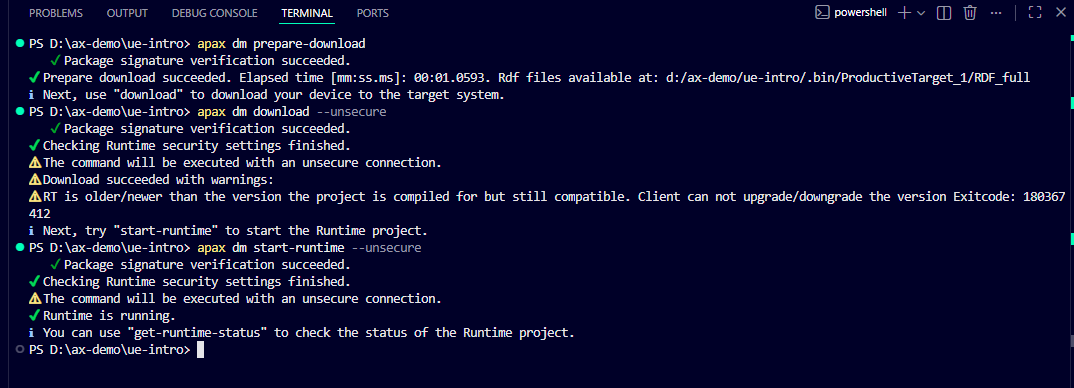
apax dm is the device management command family. This is where you talk to a running WinCC Unified PC Runtime — prepare a download bundle, push it to the runtime, start and stop the runtime service. The dm in apax dm stands for Device Management. In the TempController demo, apax dm prepare-download, apax dm download, and apax dm start-runtime are the three commands that stood up the browser-based HMI.
The less common commands — apax login, apax update-license, apax pack, apax publish — sit around the edges: authentication, license lifecycle, and distributing packages. They matter, but most sessions do not need them.
apax create
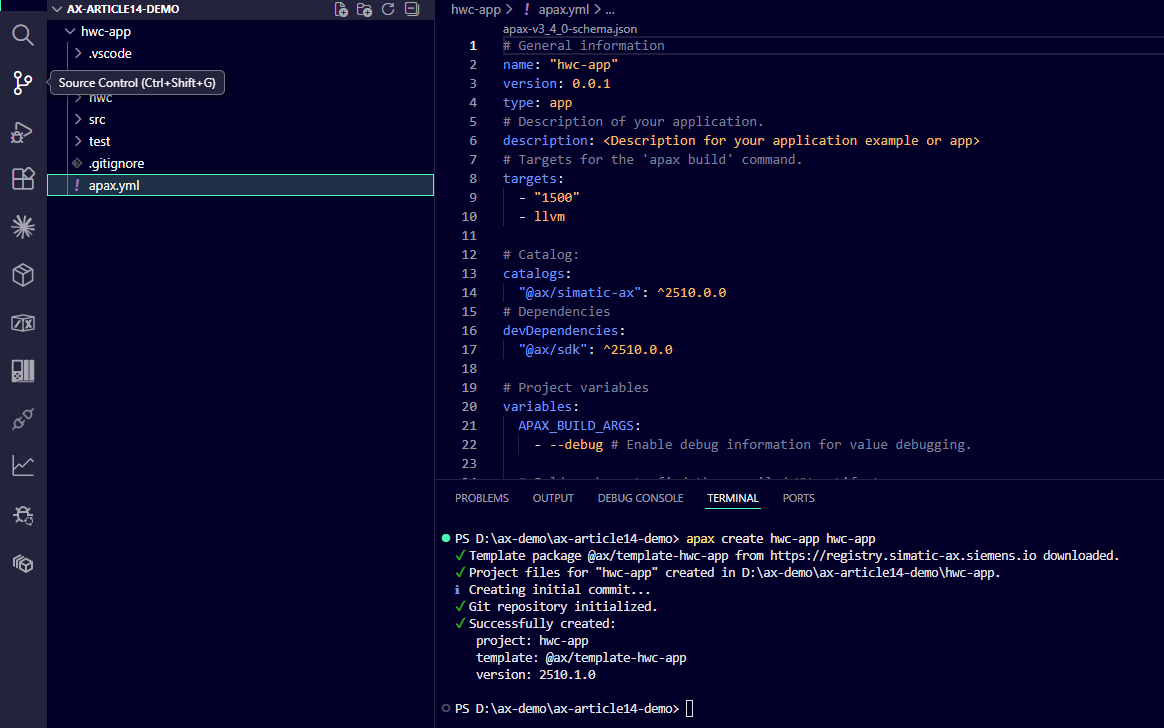
apax create scaffolds a new project from a template.
The two templates I have worked with directly:
apax create app <project-name>        # AX + TIA Portal hybrid
apax create hwc-app <project-name>    # Full AX engineering (standalone S7-1500)
The app template targets a hybrid workflow: write function blocks in AX, export them to TIA Portal as locked FBs, and let TIA handle hardware configuration, compilation, and loading. It generates src/, test/, and an apax.yml with software-only scripts.
The hwc-app template is for full AX engineering without TIA Portal. It adds hwc/ (hardware configuration), certificate/ (TLS certificate scripts), and SystemConstants/ (auto-generated I/O mapping tables). The apax.yml includes scripts for every stage: generating a hardware template, setting up TLS, adding PLC users, compiling hardware, loading hardware, and loading software. The scripts look long, but they are just wrappers around the underlying CLI tools (hwc, hwld, sld).
For the WinCC UE HMI side, the relevant template is:
apax create @ue/empty-device <device-name>
This creates a WinCC UE device project — the HMI equivalent of the PLC project. It generates a different structure (Configuration/, System/) with a minimal apax.yml that pulls the UE packages (@ue/code.elements, @ue/open.elements). The dm commands operate on this project, not on the AX PLC project.
What the template gives you is a working baseline. The ax-getting-started demo project was created with apax create hwc-app — the apax.yml in that project is unchanged from what the template generates, except for the project name and IP address.
One practical detail: apax create targets a specific scope (@ax/template-hwc-app, @ue/empty-device) pulled from the Siemens registry. If you are not logged in, the registry call fails. Run apax login first on a fresh machine.
apax install
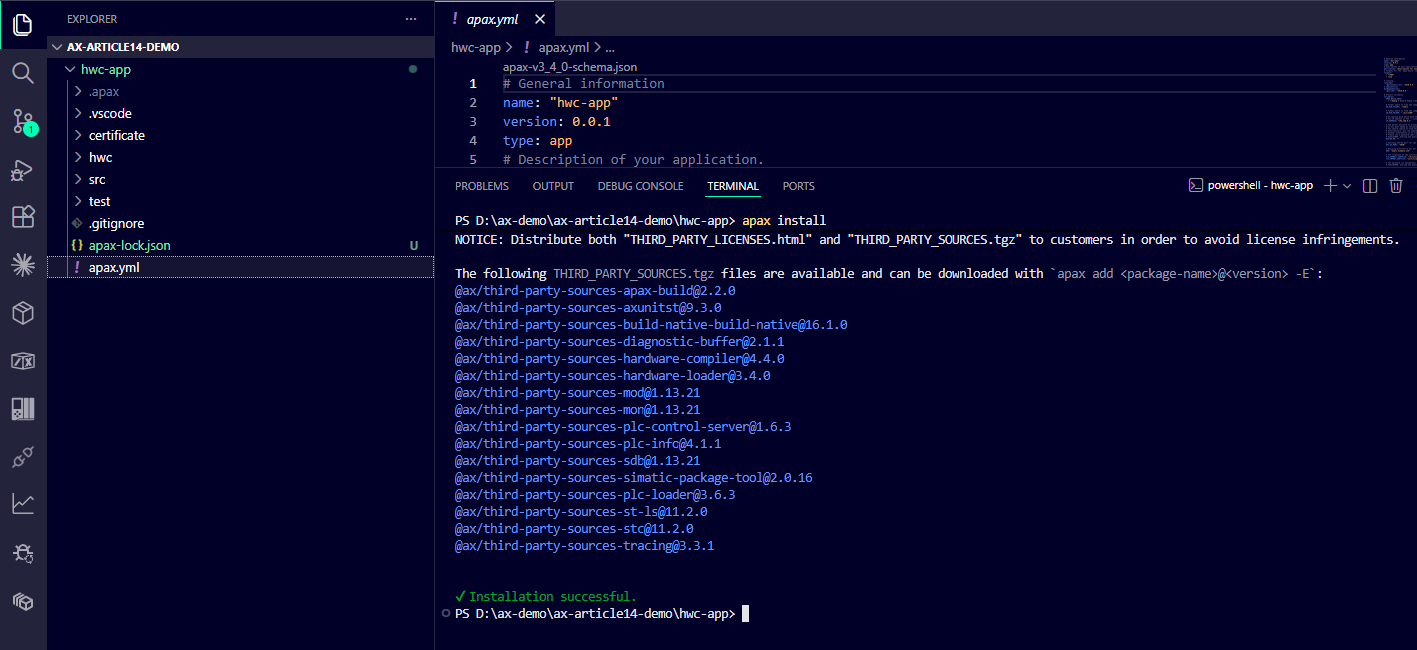
apax install reads apax.yml and downloads the declared packages from the configured registry.
cd my-ax-project
apax install
The result is a .apax/ folder at the project root — structurally similar to node_modules/ in a Node.js project. The packages go there and stay there until apax clean runs. The folder is in .gitignore by default and should not be committed.
The lock file — apax-lock.json — is the other side of apax install. It records the exact versions of every package (including transitive dependencies) that were resolved during install. This is the same role package-lock.json plays in npm. apax-lock.json should be committed to git; the official Siemens demo repositories all commit it.
On a machine that already has the right packages installed globally (in ~/.apax/cache/), apax install is fast — it finds the packages in the local cache and unpacks them rather than re-downloading. On a fresh machine it goes out to the registry.
The registry configuration lives in a ~/.apaxrc file (or equivalent) that apax login populates. The Siemens registry URL is https://npm.pkg.github.com/simatic-ax for the open-source packages. Private packages (early-access AX packages) go through the Siemens private registry, which requires the SIMATIC AX Early Access Program.
One practical difference from pip or NuGet: apax packages are scoped. Every AX package has a scope prefix — @ax/ for AX SDK packages, @ue/ for WinCC UE packages, @simatic-ax/ for community and Siemens-published libraries. The scope is part of the package identity. @ax/system-timer and system-timer (without scope) are completely different things. This is the npm model, and it is intentional — it means two packages from different organizations can both be named timer without colliding.
The catalog field in apax.yml is worth understanding:
catalogs:
  "@ax/simatic-ax": ^2510.0.0
This pins the entire AX SDK ecosystem to a coherent version. The ^2510.0.0 catalog entry means “use the @ax/simatic-ax catalog at this version range.” That catalog then resolves the exact versions of @ax/sdk, @ax/axunitst, @ax/system-timer, and every other @ax/ package so they are all compatible with each other. Without the catalog, individual package versions would need to be manually coordinated — the catalog is a convenience that makes the AX SDK behave more like a versioned monorepo than a collection of independent packages.
apax build
apax build compiles the ST source code in src/ and produces binaries in bin/.
cd my-ax-project
apax build
For a project with targets "1500" and llvm declared in apax.yml, the build produces:
bin/
├── 1500/     <- S7-1500 deployable binary
└── llvm/     <- LLVM binary (used by apax test and local debugging)
Successful build output looks like:
Compile finished with 0 error(s)
Errors are reported with file name, line number, and message — the same format as any compiler. The AX ST compiler is strict about types: REAL and LREAL are not interchangeable without an explicit conversion, typed literals (REAL#1.0, INT#5) are enforced where the context requires them, and namespace USING statements must be present before any type from that namespace is referenced.
One thing TIA Portal engineers should know: the build in AX is a genuine compile step, not a project validation. The output is a binary artifact — bin/1500/ contains the loadable program. Nothing is embedded in a .ap18 project file. The binary is a file on disk, diffable in git (as a binary blob), and transferable between machines.
For full AX projects (hwc-app), hardware compilation is separate:
apax hw_compile    # compiles hwc/ to hwbin/ and generates SystemConstants/
apax build         # compiles src/ to bin/
The hardware compile must happen before the software build on a fresh project, because hw_compile generates SystemConstants/ — the I/O address mapping tables that the ST code in src/ references. Without SystemConstants/, the software build fails with unresolved references.
The bin/ and hwbin/ folders are in .gitignore. Build artifacts are not committed. What gets committed is the source. What gets built is reproducible from the source — that is the point.
apax test
apax test compiles the test code in test/ and runs the AxUnit test fixtures.
cd my-ax-project
apax test
The default target is LLVM — tests run on the local machine without a PLC. For the TempController demo project, apax test runs 13 tests in about two seconds and reports:
Test run result: passed: 13 failed: 0
TIA Portal does have function block unit testing — it is called the Application Test feature, part of TIA Portal Test Suite Advanced (article number 6ES7823-1TE08-0AA5, available since V16, separate paid license). The distinction is where the tests execute. TIA Application Tests run against a SIMATIC S7-PLCSIM Advanced simulation runtime: to run them, PLCSIM Advanced must be installed on the test machine. The Siemens documentation states this directly: “To run the test cases, you must install TIA Portal Test Suite together with SIMATIC S7-PLCSIM Advanced.” PLCSIM Advanced is Windows-only Siemens software. A Linux CI build server with no Siemens software installed cannot run TIA Application Tests.
apax test compiles to LLVM and runs as a native host process. No PLCSIM Advanced. No Siemens runtime. A Linux CI build server with no Siemens software installed can run apax test on every commit. That is the precise advantage: not that TIA has no equivalent, but that the AX equivalent needs no Siemens runtime on the test machine.
A few things worth knowing before the first apax test run:
The LLVM compiler arrives via apax install. When a project is scaffolded and apax install runs, one of the packages it pulls in is @ax/target-llvm-win-x64 (or the equivalent for the host OS). It sits in .apax/packages/ alongside the AxUnit library and the other standard packages — no separate LLVM installation step. The bin/llvm/ build target described in the previous section uses that package directly. If LLVM is missing from a project, the first thing to check is whether apax install ran cleanly and the package is present under .apax/packages/@ax/target-llvm-win-x64/.
Spaces in the project path break apax test. This is a confirmed quirk from working with these demo projects. The AxUnit test director has its own CLI argument parser, and when apax test passes the project path through to it, the path arrives unquoted. The argument parser splits on whitespace, so the first space in any parent folder name ends the path and turns the rest into unrecognised arguments. The exact error this produces:
Specify --help for a list of available options and commands.
Unrecognized command or argument 'Solutions\The'
The second token in the error message — Solutions\The in this case — is the word that immediately follows the first space in the path. If the path starts with C:\Users\YourName\..., the token will be YourName\.... The error text is searchable and specific to this cause.
This matters more than it might seem when moving from TIA Portal to AX. Default Windows paths hit it immediately: C:\Users\<name>\Documents\ contains spaces, OneDrive sync folders contain spaces, SharePoint-synced vault paths contain spaces. On a standard Windows installation, the default workspace almost certainly does. The workaround is a short top-level path with no spaces — I use D:\ax-demo\ax-getting-started\ for exactly this reason.
Observed with apax CLI v4.2.0 and v4.3.0, May 2026. A future apax release may quote the argument correctly, which would make this a non-issue — but as of these versions it is not. apax build is not affected; only apax test has this limitation.
One more thing before moving the folder. Copying an apax project is not a full relocation. The .apax/dependencies.json file has absolute paths baked in from the time apax install ran — copy the folder and those paths still point at the original location. A freshly copied or freshly scaffolded UE device project can also ship with a blank Hostname on its default target, which will cause apax dm commands to fail silently. After moving to a short path, run apax install in the new location and verify the dm target hostname is set. If cryptic dm exit-1 failures with no error text show up, the “When dm Commands Fail Without an Error Message” section below covers both of these patterns and their exact fixes.
The --coverage flag adds line coverage reporting:
apax test -c
For CI/CD pipelines, the --machine-readable flag (-m) outputs results as JSON, and --output (-o) stores test artifacts to a specified path for artifact collection. I have not yet set up an actual CI pipeline against the demo project — what I am describing here is from the package documentation, not a pipeline I have run. A future article will go deeper on CI/CD for AX.
Other test targets exist — mc7p to run tests directly on a physical S7-1500, and plcsim for PLCSIM Advanced. For the standard development loop, LLVM is the right starting point.
What the output actually looks like — and why there is so much of it. The first apax test run can leave you wondering whether something went wrong. The terminal fills with dozens of lines before the result appears. This is by design. apax test runs the full pipeline: signature verification, environment prep, a complete apax build of both the source and test code (calling stc, the Structured Text compiler, with its full plugin discovery and command-line arguments), LLVM compile of the test binary, AxUnit execution, and finally the summary. Most of the visible output is the build step.
Two linker warnings appear consistently near the end and are benign:
WARNING: Linking two modules of different data layouts
WARNING: Linking two modules of different target triples
These appear because the pre-built AxUnit library bitcode shipped in the apax package was compiled for Linux LLVM (x86_64-pc-linux-gnu), while a Windows build targets x86_64-pc-windows-msvc. LLVM IR is portable enough that the link succeeds; the warnings are noise. They show up on every run. Ignore them.
The meaningful output is the final summary block:
Overall result: Passed / total: 13 / executed: 13 / passed: 13 / failed: 0
That line is what you are waiting for. Everything above it is infrastructure.
apax dm
apax dm is the device management command family. This is what handles the WinCC Unified PC Runtime — the standalone runtime that serves the HMI to a browser.
The commands run from the WinCC UE device project directory (where the HMI apax.yml lives), not from the PLC project.
The sequence I used for the TempController demo:
cd ue-intro
apax dm prepare-download
apax dm download --unsecure
apax dm start-runtime --unsecure
prepare-download validates the entire HMI project — YAML schema, tag references, resource list definitions, OPC UA connection parameters — and generates the runtime download bundle in .bin/. This is where schema errors surface. Getting it to clean on the first project took several iterations; the error messages are specific about which field is wrong, but you have to know what the field expects.
download --unsecure pushes the prepared bundle to the running WinCC Unified PC Runtime. The --unsecure flag means no TLS for the download channel — acceptable for a local demo, not for production. The expected output when it works:
Download succeeded with warnings:
RT is older/newer than the version the project is compiled for but still compatible.
EXIT_CODE: 0
That specific warning — V20 project downloaded to a V21 runtime — is benign. The runtime accepted the project. The warning is informational, not a problem.
start-runtime --unsecure starts the downloaded project inside the WinCC Unified Runtime service.
In apax CLI v4.2.0 (the version in use during the initial TempController stand-up, May 2026), this command returned exit code 1 even when the runtime came up cleanly:
StartRuntime action completed with errors. Runtime status is not available.
Failed to start up the runtime project  Exitcode: 2327851034
EXIT_CODE: 1
The failure was in an OPC UA sub-process (WCCILopcua) that crashed immediately because no PLC was connected at the other end of the configured endpoint. The dm wrapper surfaced that sub-process crash as the command’s exit code. The main runtime was up and serving the HMI at https://localhost/WebRH — but the exit code said otherwise. The lesson at the time: do not trust the exit code, verify with curl -k https://localhost/WebRH.
By apax CLI v4.3.0 (mid-May 2026), this was fixed. The command now returns exit 0 with a clean success message:
- Starting runtime
✔ Runtime is running.
ℹ You can use "get-runtime-status" to check the status of the Runtime project.
Confirmed by apax dm get-runtime-status --unsecure --no-input returning “Runtime is running” immediately after. On an older CLI version, if exit code 1 from start-runtime shows up, check the apax release notes — the fix is in v4.3.0. And check the apax CLI version that is actually running (apax --version) before spending time debugging a symptom that no longer exists on current tooling.
There is also apax dm stop-runtime, which stops the running project, and apax dm setup-device, which runs initial device configuration. setup-device is the first command after apax create @ue/empty-device — it configures the local PC as the target device and sets up the runtime connection parameters.
One more practical note on the HMI side: getting the WinCC Unified PC Runtime configured for standalone operation took more than just apax dm download. The runtime installs in Engineering Station mode by default (when installed alongside TIA Portal), with a notRunnable = 1 flag in its configuration file. In that mode, apax dm download fails. The fix was running the SIMATIC WinCC Unified Station Configurator as Administrator — a separate GUI tool that reconfigures the runtime for standalone PC Runtime operation. After that, apax dm download worked. On a fresh workstation for WinCC UE development, the Station Configurator step is not optional and is not mentioned in the apax CLI help text.
The UMC (User Management) layer adds another step in a clean standalone install: the PC Runtime requires a UMC user before the browser-based HMI will authenticate and render. This is configured at https://localhost/UMC/. Without it, the WebRH application loads its Angular shell and stalls on the login flow — showing a gray screen rather than an error. The gray screen is not a code problem; it is a missing runtime configuration step.
For S7-1500 hardware (PLC side, not HMI), the load command family works differently. Instead of apax dm, the sld (software load) and hwld (hardware load) tools are used, exposed as custom scripts in apax.yml:
apax load           # runs: sld load --input ./bin/1500 --target 192.168.0.1 ...
apax hw_load        # runs: hwld load --input ./hwbin/PLC_1 --target 192.168.0.1 ...
apax dlplc          # runs: apax build, then apax load
apax compile_and_load_all  # runs: hw_compile, hw_load, build, load — full first-time setup
These are not built-in apax commands — they are custom scripts defined in the apax.yml scripts: section of the hwc-app template. The distinction matters: apax dm is a built-in subcommand; apax load and apax dlplc are project-defined aliases.
A Few More Commands Worth Knowing
These are not the core development loop, but they matter.
apax login authenticates with the Siemens package registry. On a fresh machine, this has to run before apax install will work. The credentials are a personal access token — the same token format used for GitHub Package Registry access, since the AX registry is hosted there. The token is stored in ~/.apaxrc. apax login without arguments launches an interactive prompt.
apax update-license refreshes the offline license for the AX compiler. The AX compiler requires a license, managed through Siemens License Manager (ALM). Run it while online with a valid ALM license. The output is a single line:
ℹ Local license updated successfully.
Clean exit. No confirmation prompt, no progress bar. Observed on my workstation, apax CLI v4.3.0, 2026-05-18.
apax doctor is the health check command. It verifies authentication, registry connectivity, environment setup, and project validity. When something breaks and the cause is not obvious, apax doctor is the first diagnostic. It reports what is installed, what is configured, and what is missing.
apax pack and apax publish are for the library workflow — packaging function blocks for distribution and publishing to a registry (public or private). I have not used either in my demo projects. These belong to a library project (apax create lib), not an application project. A future article will cover the full library packaging lifecycle in detail.
apax clean removes .apax/ and bin/. It returns the project to a pre-install, pre-build state. Useful when a clean install from scratch is needed — for example, if the .apax/ folder is corrupted or a fresh package resolution is required.
When dm Commands Fail Without an Error Message
Three patterns produce the same symptom: a dm command exits 1 with no error text — just ✘ (empty) on one line and ✗ An error occurred while attempting to run dm. Exitcode: 1 on the next. Each has a different cause and a different fix.
Pattern 1 — The project folder was copied: .apax/dependencies.json has absolute paths baked in. Every package entry in that file has a "path": field populated at the time apax install ran. Copy the project, and those paths still point at the original location. The symptom when this bites:
path for apax keyword '@ue/codesupportsnippets' must be inside project dir: '<original path>'
The folder it expects the package in is the old location — the project’s current path is irrelevant until dependencies.json is regenerated. Fix: run apax install in the new location. It regenerates the file with the correct absolute paths for where the project actually is now.
Pattern 2 — A copied or freshly scaffolded UE project: device.yml Hostname can be blank. For UE device projects, the default download target (ProductiveTarget_1) can be left with an empty Hostname field. The dm subsystem has no host to address, so it fails before producing anything useful. Fix:
apax dm edit-target ProductiveTarget_1 --hostname localhost --no-input
Replace localhost with the actual target hostname for a remote deployment.
For a freshly copied project, Pattern 1 and Pattern 2 fixes together:
apax install
apax dm edit-target ProductiveTarget_1 --hostname localhost --no-input
In TIA Portal, copying a project folder to any path works cleanly — the tool resolves everything relative to the project file. apax keeps absolute path state in its install artifacts, so a copy is not a full clone until the install step has been re-run. The apax-lock.json travels correctly (it records versions, not paths); .apax/dependencies.json does not.
Pattern 3 — The local Device Manager server gets into a stuck state. This one is not copy-related — it can happen at any point in a session, including on a project that has been working fine for hours. A dm command that worked two minutes ago exits 1 with empty output. The runtime itself may still be perfectly healthy; verify with curl -k https://localhost/WebRH to confirm. What happened is that the local ItLikeEs.Server.exe process (the Device Manager server) stalled.
Fix:
apax dm stop-server --no-input
Output:
ℹ Shut down server for device "<name>".
The next dm command auto-relaunches a fresh server and works. One wrinkle: the first dm command issued immediately after stop-server sometimes races the new server’s startup and also fails with the same empty-exit-1. If that happens, run the same command again — the second invocation lands cleanly. stop-server returns immediately; the new server takes a moment to fully bind to its socket, and the first command can lose that race.
This pattern is non-deterministic. It can occur multiple times in the same session, across different dm subcommands (prepare-download, stop-runtime, get-runtime-status). Treat stop-server as a routine recovery move when the symptom shows up — not an emergency. Observed with apax CLI v4.3.0, 2026-05-18.
Where the CLI Shines vs. Where It Strains
The CLI is genuinely good at the daily development loop. Editing ST code in VS Code, running apax build in the integrated terminal, running apax test in a separate terminal pane — that cycle is clean. The feedback is immediate, the output is readable, and there is nothing hidden.
It is also strong on project-level reproducibility. The combination of apax.yml (what packages to install), apax-lock.json (exact resolved versions), and the scripts: section (how to build, load, and configure) means a colleague can clone the repository and reach a working build with apax install && apax build. That is not a guarantee you can make with a TIA Portal project, where the tool version, installed options, and installed hardware profiles all need to match in ways that are not captured in the project file.
Where it strains: the first-time device setup experience. The Station Configurator requirement for WinCC UE is not surfaced by the CLI. The UMC user requirement is not surfaced by the CLI. These are configuration problems that show up as CLI failures without clear error messages pointing to the real cause. For an engineer setting up a new machine, there is a gap between “follow the apax docs” and “everything works.”
The apax dm subsystem is where the most rough edges collect — three of them are documented in the section above. The exit code unreliability on apax dm start-runtime is the one that stings the most: in TIA Portal, a download success is obvious — the device icon goes green or the error dialog appears. The start-runtime exit code does not tell you whether the runtime is actually serving. A secondary check is needed. That is a tooling maturity question, and the numbers make it concrete: TIA Portal launched in November 2010 and has been refined across more than 15 years of production deployments. SIMATIC AX entered Early Access in 2022 and still has not reached general availability as of this writing. These are not products at different points in the same lifecycle — the gap is closer to a generation. The rough edges in apax dm are not a permanent flaw; they are what a platform looks like before two or three years of field feedback have had time to sand them down.
Neither of these criticisms changes my view that the CLI-first approach is the right direction. The PLC tooling I have used for the last decade does not have apax test. It does not have a lock file. It does not have a version-controlled build output path. The strains are real, but they are the kind that get fixed as the platform matures. The structural advantage of having the CLI as the primary surface — not a scripting add-on — is not something you can retrofit onto a GUI-first tool.
What Is Next
The next article goes back to foundations — specifically CONFIGURATION, TASK, and PROGRAM blocks. If the CLI article is about how you build and deploy, the next one is about what the AX compiler actually executes: the scan cycle, how tasks are defined in configuration.st, how programs get assigned to tasks, and what that looks like compared to OBs in TIA Portal.
If you have been using the apax CLI on a real AX project and have found a pattern I missed — or have a different approach to the apax dm workflow — I want to hear it. The demo-project experience gives me a working picture, but field experience with real S7-1500 hardware and production WinCC UE deployments would sharpen it considerably. I would rather have a better answer than defend the first one I landed on.
Working on something similar?
I am Yuriy Mosiyenko — I design and program industrial control systems, mostly Siemens, as a one-person practice based in Bedford, Nova Scotia, working with customers across Canada. If you have a controls project you cannot staff internally, tell me what you are building.
