
April 15, 2026 · tia-portalhmifirmwarecommissioningsiemenstroubleshooting
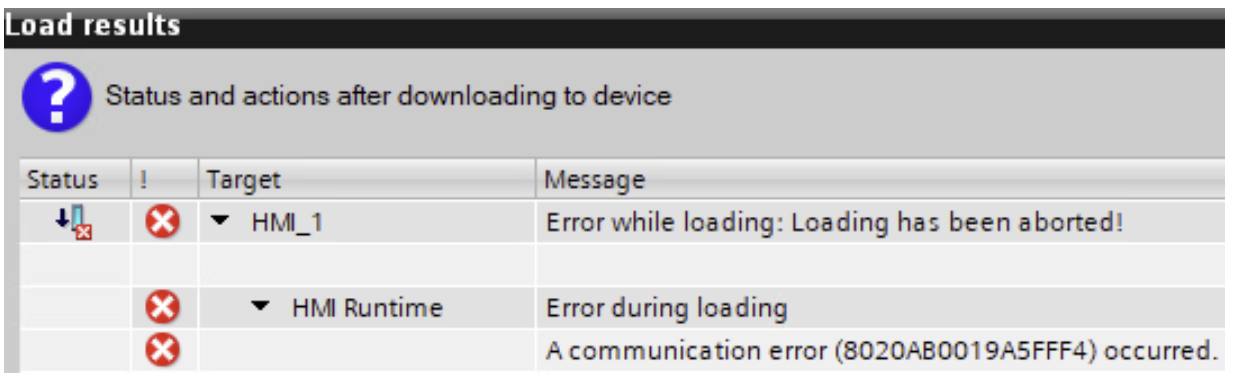
If you have ever upgraded a TIA Portal project from V16 or V17 to V20 and then tried to download to a Comfort Panel on site, you have probably hit this: the project compiles perfectly, everything looks fine, you click download – and TIA Portal fails with a cryptic error message. Something along the lines of an error code and a vague description that sounds like your HMI hardware is broken or incompatible.
Here is the frustrating part: TIA Portal never tells you that a firmware image is missing. It does not say “image not found” or “please install the firmware package.” It just fails, and the error message sends you down completely wrong troubleshooting paths. The first time this happened to me, I spent hours searching online trying to understand what was going on. If you do not already know what this error means, you have no way to figure it out from the message alone.
This has bitten me on multiple commissioning trips. Here is what is actually happening, why Siemens does it this way, and how to fix it permanently.

The Scenario
You have a project originally built in TIA Portal V16. The customer has Comfort Panels – TP700, TP1200, or similar. You upgrade the project to V20 because that is where your license is, and you head to site for commissioning.
The PLC program uploads fine. Then you try to download to the HMI and TIA Portal fails with an error that gives you no useful information about what is actually wrong. Time to troubleshoot – except you are on a vessel, or in a plant, with limited internet and a customer watching.
Why This Happens
Siemens stopped releasing firmware updates for Comfort Panels and Advanced Panels after TIA Portal V17. The panels still work in V20 – you can configure them, program them, and download to them. But the HMI image packs that Siemens provides for download have a hardcoded target: V17.
To get the images in the first place, you need to download and install these packs from the Siemens support site:
- SIMATIC_WinCC_Panel_Images_V17 – the main image pack
- SIMATIC_WinCC_Legacy_Panel_Images_V17 – images for older/discontinued panels
- SIMATIC_WinCC_Panel_Images_V17_Upd9 – the latest update pack
When you install these packs, the installer creates or populates the V17 directory structure:
C:\Program Files\Siemens\Automation\Portal V17\Data\Hmi\Transfer\
The problem? TIA Portal V20 only looks in its own directory:
C:\Program Files\Siemens\Automation\Portal V20\Data\Hmi\Transfer\
Your images are installed. They are just in the wrong place.
The Fix That Looks Right but Is Not Enough
The first instinct is to copy the firmware image files (.fwf) from the V17 folder to V20. That gets you past the initial error, but then you hit a second one:
“Adaptation of target device failed”
This happens because TIA Portal needs more than just the firmware image. It also needs runtime adaptation files – .ruf files, SystemData.zip, and WebContent.zip – that live in a separate subfolder.
The Complete Fix
Under each TIA version’s Transfer directory, there are two levels of panel-type folders:
Transfer/17.0/
  CP_7_9/                  <-- Runtime adaptation files (.ruf, SystemData.zip, etc.)
  CP_15_19_22/
  KTP700/
  ...
  Images/                  <-- Firmware images (.fwf)
    CP_7_9/
    CP_15_19_22/
    KTP700/
    ...
You need to copy both levels from the V17 tree to the V20 tree. Not just the Images subfolder – the top-level panel folders too.
Step by Step in Windows Explorer
Close TIA Portal.
Open Windows Explorer and navigate to the V17 Transfer folder. You will need to run Explorer as Administrator (right-click, “Run as administrator”) because the folder is inside Program Files:
C:\Program Files\Siemens\Automation\Portal V17\Data\Hmi\Transfer\Inside this folder you will see version subfolders like
13.0.1,14.0.1,15.0,15.1,16.0,17.0. You only need the17.0folder – that is where the image packs you just installed put their files. Open it. Inside you will see two things:- Panel-type folders at the top level (like
CP_7_9,CP_15_19_22,KTP700, etc.) – these contain the runtime adaptation files (.ruf,SystemData.zip,WebContent.zip) - An
Imagessubfolder – this contains the firmware image files (.fwf)
- Panel-type folders at the top level (like
Now open a second Explorer window and navigate to the same path but under V20:
C:\Program Files\Siemens\Automation\Portal V20\Data\Hmi\Transfer\Find or create the
17.0folder inside V20’s Transfer directory. Copy everything from the V17 location’s17.0folder into it:- Copy all the panel-type folders (like
CP_7_9,CP_15_19_22) into the V2017.0folder - Open the
Imagessubfolder and copy all panel-type folders inside it into the V2017.0\Imagessubfolder
If the
17.0folder orImagessubfolder does not exist in V20, create it.- Copy all the panel-type folders (like
Restart TIA Portal and retry the HMI download.
Panel Type Folder Mapping
If you are wondering which folder corresponds to your panel:
| Panel | Folder Name |
|---|---|
| TP700 Comfort | CP_7_9 |
| TP900 / TP1200 Comfort | CP_7_9 (7/9 inch) or CP_15_19_22 (larger) |
| KTP700 Basic | KTP700 |
| KTP1200 Basic | KTP1200 |
The Real Fix: Prepare Before You Travel
The best fix is not needing to troubleshoot this on site at all. Before any commissioning trip where you are upgrading a legacy project:
- Check your panels. Open the project, note every HMI panel type and its current firmware version.
- Download and install the HMI image packs (SIMATIC_WinCC_Panel_Images_V17, Legacy_Panel_Images, and the latest update pack) on your engineering laptop.
- Copy the files from the V17 Transfer folder to V20 as described above.
- Test the download in the office – use a simulation or a bench panel if you have one.
Why Siemens Does It This Way
This is not really a bug – it is a consequence of how Siemens manages the lifecycle of discontinued panel lines. The Comfort Panels were superseded by Unified Comfort Panels, which are natively supported in V18 and later. Siemens still lets you use the old panels, but the tooling support stops at V17.
The alternative would be for Siemens to release new installer packages for every new TIA Portal version, for hardware they have already end-of-lifed. They chose not to, and honestly, from a product lifecycle perspective, it makes sense. It just means integrators who maintain older installations need to know about this workaround.
Summary
- Legacy Comfort Panel firmware installers target TIA Portal V17, regardless of what version you are running.
- Copying only the
.fwfimage files is not enough – you also need the.rufruntime adaptation files. - A simple copy in Windows Explorer handles the fix across all firmware versions.
- Do this before you leave for site, not when you are standing in front of the panel with a customer waiting.
This is one of those issues where knowing about it saves you hours. Hopefully this saves you the same troubleshooting time it cost me the first time around.
Working on something similar?
I am Yuriy Mosiyenko — I design and program industrial control systems, mostly Siemens, as a one-person practice based in Bedford, Nova Scotia, working with customers across Canada. If you have a controls project you cannot staff internally, tell me what you are building.
