April 30, 2026 · siemenswincc-unified-elementssimatic-axtia-portalhmiindustrial-automationplc-programming
Why This Article Exists
Two weeks ago I posted that Siemens combined SIMATIC AX and WinCC Unified Elements under the same roof. I called it “SIMATIC AX WinCC Unified Elements” because that is how Siemens now brands it.
Since then, I have been spending real time inside this combined environment. It took me a while to make sense of it, because as a TIA Portal engineer I had to rewire how I think about HMI design.
This article is for TIA Portal engineers who keep hearing about WinCC Unified Elements but have not yet figured out what it actually is, how it relates to SIMATIC AX, and whether it is worth your time today. I will walk you through what changed for me — both the parts I like and the parts that are not there yet.
One IDE for PLC and HMI
The first thing to understand: there is no separate program for WinCC Unified Elements.
In TIA Portal, you open one application and you have everything — PLC project, HMI project, drives, network. Everything in one big tool. SIMATIC AX broke that apart at first. AX was for PLC code only, and HMI was a separate question.
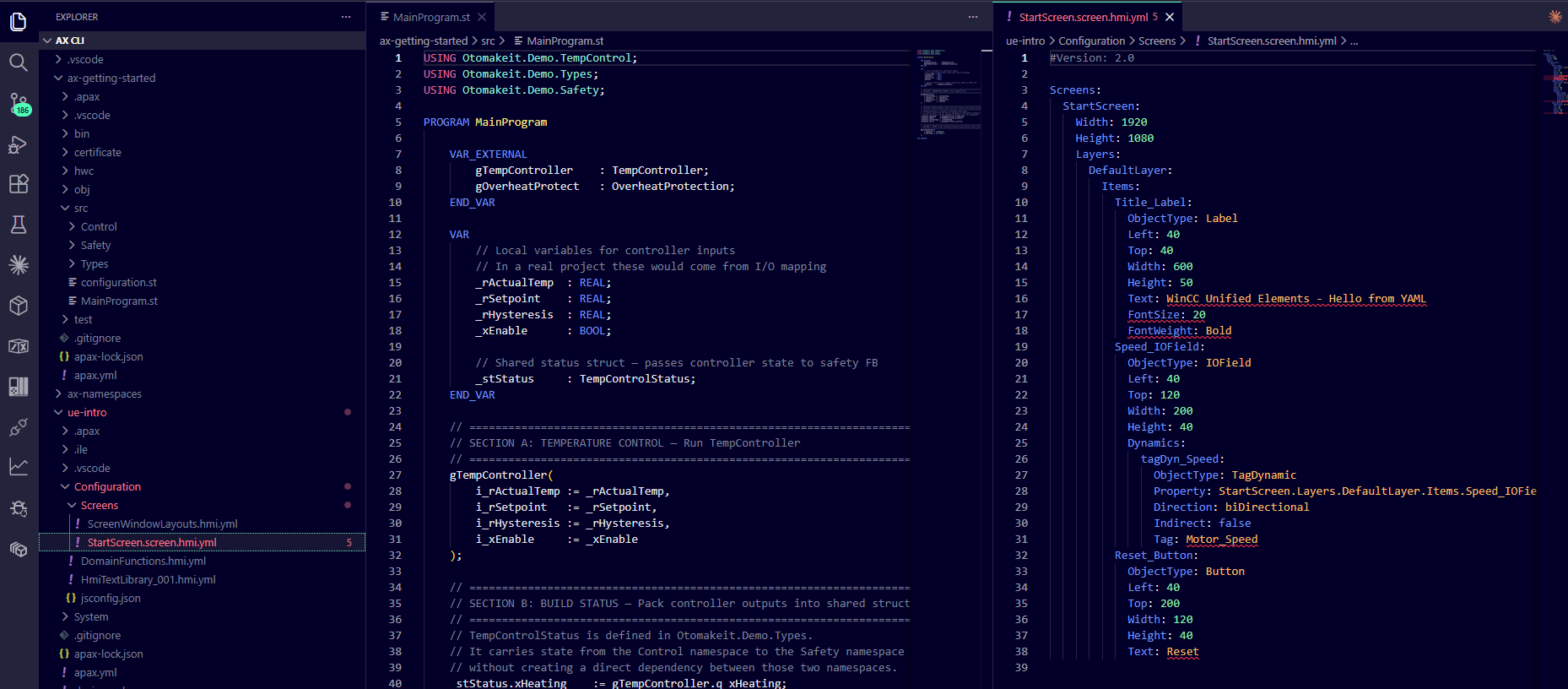
That gap is now closed at the IDE level. The IDE for both is AX Code — the same VS Code-based environment, with extensions that handle SIMATIC AX on one side and WinCC Unified Elements on the other. You install AX Code once. The PLC code and the HMI code show up in the same Explorer panel, in the same window.
I should be precise about how this works in practice, because TIA Portal has trained us to think about a project as a single bundled artifact. AX and Unified Elements do not work that way. Each one is its own apax project — its own folder with its own apax.yml at the root. So in real life, your application is two folders sitting side by side: one for the PLC, one for the HMI. The unification is not “one project file with both halves inside”. The unification happens at two layers above the project:
- At the IDE layer — open the parent folder in AX Code and both projects appear in one window, with the right extensions activating on each. PLC code and HMI YAML are equally first-class.
- At the git layer — one
.gitat the parent folder tracks both projects together. One commit can change a tag pragma in the PLC and the corresponding tag binding in the HMI. One pull request reviews both halves of a feature.
For a TIA engineer this takes a moment to get used to, because TIA’s HMI is married to the PLC project file. In AX + UE, the two are separate by design and connected over OPC UA at runtime. The folder layout reflects that reality. What you gain is independence: each side can be built, tested, and deployed on its own schedule, without the other side being open or even installed.
Everything Is a Text File — and the Editor Is a Viewer of That Text
This is where the paradigm break happens.
In TIA Portal, your HMI project is a binary database. You open a screen in the WinCC editor and you drag elements around. The properties panel is your only way to set anything. If you want to know what color that button is, you click it and look at the panel. There is no “underlying file” you can read.
In WinCC Unified Elements, every screen, faceplate, tag table, alarm definition, and connection is a YAML file. Plain text. You can open any of them in any text editor.
Here is what a screen object looks like in YAML:
- ItemName: TempDisplay
  ItemType: IoField
  Geometry: { X: 100, Y: 200, Width: 150, Height: 40 }
  Properties:
    BackColor: 'rgba(255,255,255,1)'
    OutputValue:
      Dynamization:
        Type: Tag
        Tag: TempActual
That is the whole definition of an I/O field bound to a tag. No click-through-properties. Just text.
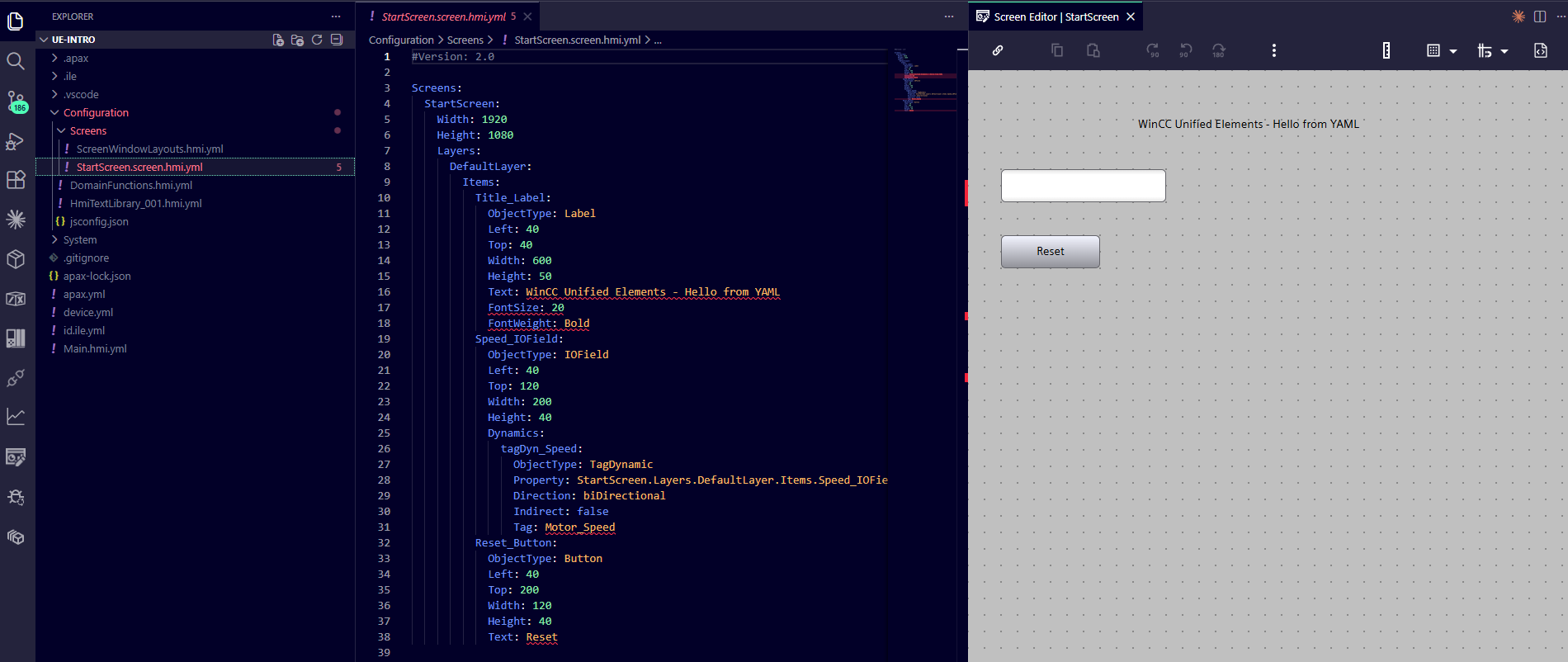
And here is the surprise: the graphical Screen Editor still exists, and it edits the same YAML file. Drag a button on the canvas, the YAML updates underneath. Edit the YAML directly, the canvas updates. Both views are showing the same source. Whichever one feels right for the task, you use.
Coming from TIA Portal, I expected code-only. AX is mostly code-only. But the Siemens HMI team kept the visual editor and just made it a view on top of the text. That is the right call, and once you accept that the text is the actual project, the visual editor becomes a productivity tool, not a wall.
Why Text-Based Files Change Everything
Once your HMI is a folder of text files, three things become possible that are practically not possible in TIA Portal HMI:
Real version control. I can git diff a screen and see, line by line, what changed. I can branch, I can merge. If two engineers work on different screens, git merges them. Nothing in TIA Portal HMI compares to this — TIA’s project archive is a binary you can store but cannot meaningfully diff.
Code review. Because the screens are text, a colleague can review HMI changes the same way IT teams review software changes — read the diff, comment on specific lines, ask questions about the binding. Today in TIA Portal, code review for HMI screens is essentially “open my project on your laptop and click around”. For solo engineers like me this matters less day to day, but for any team that wants to grow into multiple engineers, it changes what is possible.
AI-assisted design. Because the project is text, AI tools can read it, write it, and refactor it. Generating boilerplate screens, fixing tag bindings across many objects, suggesting faceplate structures — these become things an AI assistant can do, because the project is just YAML. Compared to a binary HMI project that no AI tool can meaningfully open, this is a real shift. I have not yet used this on a customer project, but in the demos I have been building, the difference is obvious.
I should say — these are not exotic IT features. They are how every modern software project is built. We are simply finally getting them in industrial automation.
Five Commands from Zero to a Running HMI
The CLI side of the toolchain is where AX Code and apax together start to feel like a serious development environment.
A new HMI device, from nothing to running on your PC, looks roughly like this:
apax create @ue/empty-device my-hmi
cd my-hmi
apax dm setup-device --product-type 4 --product-version 20.0.0.2 --unsecure
apax install
apax dm prepare-download
apax dm download --unsecure
apax dm start-runtime --unsecure
That is it. Open the URL in a browser and your HMI runtime is alive.
What I find interesting is not that you can do it from the command line. What is interesting is what this enables: you can script the whole process. Build your HMI from a CI pipeline. Spin up a fresh runtime in a container for testing. Bake the deployment steps into a script that anyone on the team can run.
This is normal in IT. It is genuinely new for HMI work.
OPC UA Is the Bridge to AX
The cleanest part of the AX + UE combination is how they talk to each other. They do not share a project file. They do not have a binary “linked HMI” relationship. They communicate over OPC UA, and that is it.
On the AX side, you mark a variable for OPC UA exposure with a pragma:
{S7.extern = ReadWrite}
{OpcUa.AccessLevel = ReadWrite}
{OpcUa.NodeGenerator.IdType = SymbolName}
g_rTemperatureSetpoint : REAL;
That is enough to expose the variable on the PLC’s OPC UA server. On the UE side, you import the tags from the AX source file and you have them mapped automatically.
Why does this matter? Because the PLC and HMI are now properly separated. They are not coupled by a shared internal project. The HMI can talk to any OPC UA server. The PLC can serve any OPC UA client. If tomorrow you replace the HMI with a custom dashboard, the PLC does not care. If the PLC vendor changes, the HMI does not care. This is good engineering.
For someone coming from TIA Portal, where the HMI is married to the PLC project, the separation feels strange at first. The more I look at it, the more it feels like the right way.
What WinCC Unified Elements Is NOT — Today
I have to be honest about the limits, because they are real and they will decide whether you can use this on your next project.
Today, WinCC Unified Elements only targets SCADA — Unified PC Runtime. It does not run on Comfort panels, Basic panels, or the Unified Comfort hardware family. If your project requires a panel-based HMI on Siemens hardware, you cannot use Unified Elements yet. You stay with TIA Portal WinCC.
A small side note on this. In a conversation with someone from the Siemens Unified Elements team, I heard that technically it should be possible to load a Unified Elements project onto a panel, even though it is not officially supported today. I want to be careful with that statement, because I have not tried it myself yet, and I am not sure it has been confirmed on real hardware. So I would treat it as encouraging but unverified. When I get a chance to try it on a real panel, I will share what I find.
Today, it is not a TIA Portal plugin. It is a separate toolchain. You do not “open a Unified Elements project from TIA Portal”. They live in different worlds. The bridge between them is OPC UA, not project import.
Today, the AX family still has gaps. No safety, no motion libraries native to the AX environment, no native drives integration the way TIA has. For a complete machine application, you may still need TIA Portal somewhere in the picture.
But here is the part I want TIA engineers to hear: panel support is on the Siemens roadmap. Based on the conversations I have had with the Siemens team, panel-based HMI in Unified Elements is expected within roughly the next year. The toolchain is moving. What is missing today is timing, not direction.
So I would not write off WinCC Unified Elements for panel-based projects. I would just note that today it is a SCADA tool, and plan accordingly.
Where I Stand Today
I want to be straight about this. All my current real projects are still in TIA Portal. I have not yet designed a customer project with SIMATIC AX or WinCC Unified Elements. What I am doing is studying both — building demos, running through the toolchain, and figuring out where they will fit in my work down the road.
So this is not a “look at me, I switched” article. It is more of a “here is what I am seeing as I learn it, and here is why I think it matters” article.
The code-based approach is genuinely interesting for any project where version control, code review, or AI assistance would help — which, honestly, is most of them. But I am not ready to bring it onto a customer project yet, and there are real reasons for that. AX does not target S7-1200, which is half of my work. Unified Elements does not target panels yet, which is most of the rest of my HMI work. So for now, TIA Portal stays as my production tool, and AX plus Unified Elements stay as my learning track.
This article is the introduction. Over the next posts in this series I will go hands-on: building a small TempController demo with the AX-side controller and the UE-side HMI, both running on my workstation, talking over OPC UA. That is where the abstract ideas start to feel real.
Question for the Community
If you are a TIA Portal engineer reading this — what would make you take the leap into a code-based HMI workflow?
The OPC UA-based separation between PLC and HMI? The native git workflow? The AI tooling? Or is there a specific feature of TIA Portal WinCC that you would not give up?
I would like to hear what is keeping you on TIA Portal — and what would make you try Unified Elements seriously.
Working on something similar?
I am Yuriy Mosiyenko — I design and program industrial control systems, mostly Siemens, as a one-person practice based in Bedford, Nova Scotia, working with customers across Canada. If you have a controls project you cannot staff internally, tell me what you are building.
